The OneStream Community is temporarily frozen until June 29th due to the ongoing maintenance. Please read the blog post here to learn more.
dashboards
20 Topics
Floor's Lava—Time to Branch Out: Building Your Tree
Welcome to the blog! In today's post, we're diving deep into the world of hierarchical data visualization—Mission Tree-Ting style. If you’ve ever needed to see your organization’s structure at a glance or wanted a smart, efficient way to visualize complex relationships like employee-manager hierarchies, you're in the right place. Objective: We’ll show you how to build a robust tree structure using VB.NET that transforms raw data into an intuitive, expandable TreeView. By leveraging a custom DataAdapter and binding it to a dashboard component, you'll learn to effortlessly bring your data to life—no messy code left behind! Use Case: Imagine managing an organizational chart where each node represents an employee and their reporting relationships. Whether you're in HR, IT, or any department that thrives on clear, visual insights, this solution provides a reusable method to: Parse and filter your data via dynamic SQL queries. Construct a hierarchical tree with unique nodes and child collections. Seamlessly embed this TreeView into your OneStream dashboard, allowing for interactive exploration of your organizational structure. So, grab your coding toolkit and get ready to transform your data into a dynamic tree that not only meets everyday business needs but also adds a touch of Mission Impossible flair to your projects. Let's get started on turning the impossible into possible—tree style! Although this example demonstrates a use case from People Planning, the same approach can be applied to any dataset with a Parent/Child hierarchy — such as product hierarchies, organizational structures, Capital Planning or cost centers. Note: The method described in this blog is one of many possible ways to visualize and manage hierarchical data in OneStream. Depending on your business requirements, alternate implementations may better suit your needs. Please refer below Blogs related to the Tree View Introduction To Tree Views | OneStream Community How to build a Multi-Select TreeView | OneStream Community Overview What is Tree View? The TreeView is primarily used for intuitive navigation and visualization of hierarchical relationships. It helps users quickly identify structural paths and validate lineage, making it useful for both data review and administrative control. Generating Tree View Our function, GetTreeViewEmpMgr, performs the following steps: Constructs an SQL Query: The query selects employee data along with manager names. A NULL value for the manager indicates that the employee is at the top level (a root node). Executes the Query and Retrieves a DataTable: Using a database connection, the function executes the SQL query and stores the result in a DataTable named "Employee". Builds the Tree Structure: The function uses custom classes—XFTreeItem and XFTreeItemCollection—along with a dictionary called nodesByName to construct the tree: XFTreeItem represents each node in the tree. It holds properties such as the display text (HeaderText), state information (bold, selected, expanded), visual properties (colors and images), and a list of child nodes. XFTreeItemCollection is a container for the tree’s nodes (typically the root nodes) and provides methods for creating a DataSet from the entire tree. The nodesByName dictionary is used to quickly look up and manage nodes by their unique identifier (in this case, by name), ensuring that each node is only created once and can easily have children added later. Returns the Tree as a DataSet: Finally, the tree is converted into a DataSet using treeItems.CreateDataSet(si) and returned for UI rendering. Constructs an SQL Query The data is retrieved from the XFW_PLP_Register (People Planning Register) based on the current Workflow Profile, Time, and Scenario — all passed as parameters to ensure contextual relevance. Select CASE WHEN M.RegisterID = E.RegisterID THEN NULL Else Concat(M.FirstName,' ',M.LastName) End as 'Parent' , Concat(E.FirstName,' ',E.LastName) as 'Child' FROM XFW_PLP_Register E LEFT JOIN XFW_PLP_Register M ON E.Code11 = M.RegisterID Where E.Status <> 'NewHire' And E.WFScenarioName = '" & WFScenarioName & "' And E.WFTimeName = '" & WFTimeName & "' And E.WFProfileName = '" & WFProfileName & "' And (M.WFScenarioName = '" & WFScenarioName & "' And M.WFTimeName = '" & WFTimeName & "' And M.WFProfileName = '" & WFProfileName & "' OR M.RegisterID IS NULL) For each employee, we extract the First Name and Last Name, along with their manager’s corresponding First Name and Last Name. In this configuration, the manager's Employee ID is stored in the Code11 field. By performing a self-join on the XFW_PLP_Register table using this reference, we can resolve and display the appropriate manager name for every employee. Emphasis on Key Components XFTreeItem The XFTreeItem class is the building block of our tree structure. Each XFTreeItem represents a node that can have: HeaderText: The display text for the node. Visual Properties: Such as text color, images (using properties like imageSource and imageName), and formatting (bold, enabled, selected, expanded). Children Collection: A list that holds any child nodes, making the node hierarchical. Additional Data: You can attach other metadata as needed, making XFTreeItem flexible for various applications. ' Common visual properties. Dim textColour As String = XFColors.Black.Name Dim imageSource As String = XFImageFileSourceType.ClientImage Dim imageName As String = XFClientImageTypes.StatusGrayBall.Name Dim isBold As Boolean = False Dim isEnabled As Boolean = True Dim isSelected As Boolean = False Dim isExpanded As Boolean = False In our code, we create new XFTreeItem objects for every child and parent as needed, ensuring that each node correctly reflects its employee or manager data. Initializing the node with default properties ' Create a node for the child. Dim childNode As New XFTreeItem(childName, childName, textColour, isBold, isEnabled, isSelected, isExpanded, imageSource, imageName, childName, Nothing) updating the parent node properties ' Create a new parent node if it doesn't exist. parentNode = New XFTreeItem(parentName, parentName, textColour, isBold, isEnabled, isSelected, True, imageSource, imageName, parentName, Nothing) 'Updating the properties of parent node If parentNode.Children Is Nothing Then parentNode.IsBold = True parentNode.IsExpanded =True parentNode.Children = New List(Of XFTreeItem) End If parentNode.HeaderText = parentName+ " ("+(parentNode.Children.Count+1).ToString+")" 'Adding the child node to the parent's children collection parentNode.Children.Add(childNode) XFTreeItemCollection The XFTreeItemCollection class serves as the container for the entire tree. It typically holds the collection of root nodes and offers helper functions to manipulate or output the tree. In our function, after building the tree, we call: Return treeItems.CreateDataSet(si) This method converts the tree structure into a DataSet, making it easier to bind to UI controls like a TreeView. By using a dedicated collection class, we encapsulate all tree-related functionality, keeping the code modular and maintainable. Item Table holds the detailed data for each node. Relationship Table captures how these nodes relate to each other (i.e., which node is the parent of which). Note: These are random names not any Org data nodesByName Dictionary The nodesByName dictionary is a crucial element in building the tree. Its main purposes are: Ensuring Uniqueness: It prevents duplicate creation of nodes by keeping track of every node by its unique name (or identifier). Facilitating Lookup: When processing a new row, the dictionary is quickly checked to see if a node already exists for the given parent or child. This way, if a parent node is referenced later, it is easily found and updated. Simplifying Tree Building: By centralizing node management, it simplifies the process of attaching children to the correct parent nodes. ' If there is a parent, check if the parent node already exists. Dim parentNode As XFTreeItem = Nothing If nodesByName.ContainsKey(parentName) Then parentNode = nodesByName(parentName) BRApi.ErrorLog.LogMessage(si,"Parent is there: "+parentNode.HeaderText) Else ' Parent does not exist yet; create it as a root node. parentNode = New XFTreeItem(parentName, parentName, textColour, isBold, isEnabled, isSelected, True, imageSource, imageName, parentName,Nothing) treeItems.TreeItems.Add(parentNode) nodesByName(parentName) = parentNode End If This approach avoids the overhead of scanning a list for a matching node each time and guarantees that each node appears only once in the tree. The Complete Code Below is the complete VB.NET code for the GetTreeViewEmpMgr function with detailed comments explaining the use of XFTreeItem, XFTreeItemCollection, and nodesByName. Public Function GetTreeViewEmpMgr(ByVal si As SessionInfo, ByVal args As DashboardDataSetArgs) As DataSet Try Dim sql As New Text.StringBuilder() Dim WFProfileName As String = args.NameValuePairs.XFGetValue("WFProfileName") Dim WFScenarioName As String = args.NameValuePairs.XFGetValue("WFScenarioName") Dim WFTimeName As String = args.NameValuePairs.XFGetValue("WFTimeName") sql.append("Select") sql.Append(" CASE WHEN M.RegisterID = E.RegisterID THEN NULL ") sql.append(" Else Concat(M.FirstName,' ',M.LastName) End as 'Parent'") sql.append(", Concat(E.FirstName,' ',E.LastName) as 'Child'") sql.append(" FROM XFW_PLP_Register E ") sql.append("LEFT JOIN XFW_PLP_Register M ON E.Code11 = M.RegisterID ") sql.append("Where ") sql.Append("E.Status <> 'NewHire' And") sql.append(" E.WFScenarioName = '" & WFScenarioName & "' And E.WFTimeName = '" & WFTimeName & "' And E.WFProfileName = '" & WFProfileName & "' And ") sql.append(" (M.WFScenarioName = '" & WFScenarioName & "' And M.WFTimeName = '" & WFTimeName & "' And M.WFProfileName = '" & WFProfileName & "' OR M.RegisterID IS NULL)") BRApi.ErrorLog.LogMessage(si,sql.ToString) Dim dt As DataTable 'Execute the query Using dbConnApp As DbConnInfo = BRApi.Database.CreateApplicationDbConnInfo(si) dt = BRApi.Database.ExecuteSql(dbConnApp, sql.ToString(), False) dt.TableName = "Employee" End Using ' Create the main tree collection. Dim treeItems As New XFTreeItemCollection ' Dictionary to keep track of nodes by name. Dim nodesByName As New Dictionary(Of String, XFTreeItem)() ' Common visual properties. Dim textColour As String = XFColors.Black.Name Dim imageSource As String = XFImageFileSourceType.ClientImage Dim imageName As String = XFClientImageTypes.StatusGrayBall.Name Dim isBold As Boolean = False Dim isEnabled As Boolean = True Dim isSelected As Boolean = False Dim isExpanded As Boolean = False #Region "Buid Tree" ' Process each row from the DataTable. Dim i As Integer = 0 For Each row As DataRow In dt.Rows Dim parentName As String = "" If Not IsDBNull(row("Parent")) Then parentName = row("Parent").ToString().Trim() End If Dim childName As String = row("Child").ToString().Trim() ' Create a node for the child. Dim childNode As New XFTreeItem(childName, childName, textColour, isBold, isEnabled, isSelected, isExpanded, imageSource, imageName, childName, Nothing) BRApi.ErrorLog.LogMessage(si,"Adding to Child Node: "+childNode.HeaderText) If String.IsNullOrEmpty(parentName) Then ' If there is no parent, then this is a root node. treeItems.TreeItems.Add(childNode) nodesByName(childName) = childNode Else ' If there is a parent, check if the parent node already exists. Dim parentNode As XFTreeItem = Nothing If nodesByName.ContainsKey(parentName) Then parentNode = nodesByName(parentName) Else ' Parent does not exist yet; create it as a root node. parentNode = New XFTreeItem(parentName, parentName, textColour, isBold, isEnabled, isSelected, True, imageSource, imageName, parentName,Nothing) treeItems.TreeItems.Add(parentNode) nodesByName(parentName) = parentNode End If ' Add the child node to the parent's children collection. If parentNode.Children Is Nothing Then parentNode.IsBold = True parentNode.IsExpanded =True parentNode.Children = New List(Of XFTreeItem) End If parentNode.HeaderText = parentName+ " ("+(parentNode.Children.Count+1).ToString+")" parentNode.Children.Add(childNode) ' Also add the child node to the dictionary. If Not nodesByName.ContainsKey(childName) Then nodesByName.Add(childName, childNode) End If End If Next #End Region Return treeItems.CreateDataSet(si) Catch ex As Exception Throw ErrorHandler.LogWrite(si, New XFException(si, ex)) End Try End Function How to Call the Employee-Manager Tree Code via DataAdapter The code in the GetTreeViewEmpMgr function is designed to be invoked from the DataAdapter layer using a parameterized string. This allows you to easily pass in filtering values and trigger the building of the hierarchical tree structure based on the specified employee-manager relationships. {TreeView}{EmpMgr}{WFProfileName= [PLP_US.PeoplePlanning],WFScenarioName=|WFScenario|,WFTimeName=|WFTime|} Attach the DataAdapter to the TreeView and Embed it into the Dashboard: Attach and Bind: Create a TreeView component in your application and bind the DataSet produced by the GetTreeViewEmpMgr function directly to this TreeView. This binding ensures that the hierarchical data is rendered correctly in the TreeView control Embed into the Dashboard: Once the TreeView is populated, embed it into your dashboard. This integration allows end-users to interact with and explore the employee-manager hierarchy in a visually intuitive manner. Together, these steps transform raw data into a dynamic, interactive component that sits proudly on your dashboard—just like a successful mission from Mission Impossible. Your organizational structure is now displayed in a neat, expandable tree format, and your mission is accomplished! For Complete Code and Detailed Setup Instructions, Please Refer to the GitHub Repository: https://github.com/Sudha8990AI/TreeView474Views2likes1Comment
Mastering Dashboard Load Events, Component Actions and Advanced Parameter Handling
For those of us creating Dashboard solutions in OneStream, there are a couple of Services for us to master, that provide us with total control over how Dashboards load, Component actions, refreshes and Parameter Handling, this blog is going to touch upon two of these, namely the Dashboard Service and Component Service, in the Service Factory. https://documentation.onestream.com/docs/Content/Design%20and%20Reference/Workspaces/8.2.2%20Dashboard%20Service%20Type.html https://documentation.onestream.com/docs/Content/Design%20and%20Reference/Workspaces/8.2.3%20Component%20Service%20Type.html?Highlight=component%20service The History: A quick history lesson on what we are covering here, before Workspace Assemblies, this functionality already existed (and still does), in a Dashboard Extender Business Rule. https://documentation.onestream.com/docs/Content/Design%20and%20Reference/Application%20Tools/Business%20Rule%20Types.html?Highlight=dashboard%20extender%20business%20rule 1) Load Dashboard Function Type 2) Component Selection Changed Function Type We would call each function type using syntax like this this e.g. {YourBusinessRuleName}{YourMethodName}{} The key difference in that the On Load event is called specifically from a Dashboard itself (usually this will be the Top-Level Dashboard). Whilst the Component Selection Changed events are called directly from the Dashboard Component e.g. We can still utilise functionality this way, but this blog will focus on execution via the Dashboard and Component Services, in the Service Factory, of a Workspace. We will also focus on DashboardExtenderArgs, the XFLoadDashboardTaskResult and the XFSelectionChangedTaskResult objects in this blog and convey how powerful they can be for Dashboard Developers. Note: This blog will use C# examples, but you will see the syntax is nearly identical to the VB.Net equivalent. Dashboard Extender Args: Before we jump into the example, I want to talk a little bit about DashboardExtenderArgs, in the context of both Services. One of the things that is most graceful about the Dashboard and Component Services is DashboardExtenderArgs. In the context of these two services, we can use DashboardExtenderArgs in a couple of different ways, in addition to simply using the values passed in directly to our method(s) using args.NameValuePairs, which is a Dictionary<string, string>. In the Dashboard Service, we can retrieve a different Dictionary<string, string> of all the KeyValuePairs from the prior run e.g. the last time the Dashboard was run using args.LoadDashboardTaskInfo.CustomSubstVarsFromPriorRun. We can then use these to set Default values for initial Dashboard invocation (more to come on this later in the Dashboard Service section). Whereas in the Component Service, we can retrieve yet another Dictionary<string, string> of all the KeyValuePairs associated with your dashboard parameters already resolved by using args.SelectionChangedTaskInfo.CustomSubstVarsWithUserSelectedValues. What this means effectively is you no longer need to pass in NameValuePairs when calling a Dashboard Extender rule, in the same way that we do with a Data Set or XFBR rule, for example e.g. {WS}{YourMethodName}{Key1=[|!prm_YourParam1!|], Key2=[|!prm_YourParam2!|]} As you can see below, from our perspective both are dictionaries of KeyValuePairs related to Dashboard Parameters; but the Key we use with this dictionary (to lookup the Value) is the actual parameter name and all resolved parameters appear in this dictionary. That’s the main difference and the reason it is so useful. {WS}{YourMethodName}{} The Dashboard Service: In terms of setup and execution, the Dashboard Service is simple. We use it to set default Parameter values when a Dashboard loads for the first time. This is important if we want to set default values or we are using nested parameters, for example where we have dependencies that must be resolved at initial run time. We typically set this on the Top-Level dashboard, because we only expect it to fire the first time a Dashboard is run (see IF statement below). It is not generally a good idea to set this on an embedded dashboard (not Top Level), so that we do not lose control over Parameter actions. To call the Dashboard Service we need to set Load Dashboard Server Task to Execute Dashboard Extender Business Rule (Once). - ChangeCustomSubstVarsInDashboard We can then use the XFLoadDashboardTaskResult object to ChangeCustomSubstVarsInDashboard e.g. set to True and then set our default NameValuePairs in the ModifiedCustomSubstVars Dictionary. This is a way to ensure Parameters have values that we can control when a Dashboard is run, for the first time. We will see this approach again, later in this blog in the Component Service. The Component Service: As you can see, the Dashboard service is simple, but effective, but the real fun starts when we start to look at what we can do after the initial run using the Component Service. This is the Service that enables us to have full control over what happens within a set of Dashboards, after they have been run for the first time e.g. catching the result from a Dashboard Component Parameter e.g. a Combo Box, to impact the result of another Dashboard Component e.g. a Cube View, etc. So, let’s start by looking at a Dashboard Component itself to understand how we can interact with the Component Service. On every Dashboard Component object there is a configurable Action section e.g. see next image. We can configure all of this with a no-code approach… But if we want to guard against certain conditions, we can extend this functionality by using the Component Service. This is important because we can perform the same functionality from the Component Service for the User Interface Actions and the Navigation Actions. Please note, we cannot replicate Save, POV and Server Task Actions using the Component Service XFSelectionChangedTaskResult object. Now let’s move onto the most powerful of all the objects in the blog, the humble XFSelectionChangedTaskResult object, in terms of what it does and how it can be used for targeted and refined Dashboard / Parameter actions. XFSelectionChangedTaskResult: The XFSelectionChangedTaskResult object is the object returned from this service to the dashboard interface. Please observe most controls are set to False by default. Next, we will deconstruct each of these properties. You’ll notice they come in pairs with a Boolean switch for each and they can be used together and interchangeably. It should also be noted that generally we always set the IsOk property to true when returning this object. To call the Component Service we need to set Selection Changed Server Task to Execute Dashboard Extender Business Rule (General Server). - ShowMessageBox The first properties we will cover here are exclusive to the Component Service and not available directly via a Dashboard Component. This is to return a message to the dashboard; once the task is complete or to return a validation message, etc. We would then set the ShowMessageBox control property to true and pass a string to the Message property e.g. Hello World. The result would look something like this example, where a dialog is returned to the UI with the message displayed - ChangeSelectionChangedUIActionInDashboard Next, probably one of the most powerful attributes of the XFSelectionChangedTaskResult object is the ChangeSelectionChangedUIActionInDashboard properties. This replicates the User Interface Actions we can configure on a Dashboard Component But we can use it here in the Component Service to override what the Component does based on a condition, for example. Let’s say that we want to test that one of the variables passed in as actually populated and if not, we do nothing. So, this ability gives us total control over Dashboard and Parameter actions, once we are in the Component service. That said, it is important to still use the Dashboard Component itself for the original actions to make the solution transparent and readable. Just because we can perform most functions at the code level; doesn’t mean it’s necessarily the best approach from a design and maintenance perspective, for example. Remember to Keep It Simple. - ChangeSelectionChangedNavigationInDashboard Next, we have the Navigation Actions. Here, again we can replicate the same actions inside the Component Service as we can on the Dashboard Component itself. Again, here we have options to guard Navigation Actions, if for example a Parameter Value that is required, has not been resolved by the Dashboard UI itself; we can set the XFSelectionChangedNavigationType to return NoAction, like we did in the example above. The next two attributes we cover are broadly similar and both are related to Parameter Dictionaries, but each has a different use case and are usually accompanied by a Dashboard Action such as a Refresh. Input Value Parameters Over Literal Value Parameters: Parameter examples shown here are largely for Input Parameters e.g. Parameters that use Parameter Type Input Value. These are generally favoured (instead of Literal Value Parameters) because they observe the User’s Session; as opposed to Literal Value Parameters, where the value persists for all users and are therefore not particularly safe to use when we expect > 1 user to interact with our Dashboard and Get / Set Parameter Values. - ChangeCustomSubstVarsInDashboard Typically, the reason why we use the ChangeCustomSubstVarsInDashboard approach is to ensure a parameter and its value reach the target Dashboard being refreshed by this Component Action. So, they provide the ability to manipulate the values assigned to a Dashboard (like example below) or reinforce a targeted set of Parameter passes from a source Component Action to a target refreshed Dashboard (which is sort of the name of the game when it comes to robust Dashboard Development in OneStream). As you can see ModifiedCustomSubstVars is simply a Dictionary<string, string>, where the Key is the full Parameter Name and the Value is the value assigned to that Parameter. Together they form the KeyValuePairs that the Dashboard consumes. - ChangeCustomSubstVarsForLaunchedDashboard The key difference with ChangeCustomSubstVarsForLaunchedDashboard is that here, specifically we are passing a Dictionary<string, string> directly to the Dialog Dashboard that is being opened. This is important because the Dialog usually sits outside the Main Dashboard, often in a separate group and has no concept of these Parameters. An example of how we would set this up via the Dashboard Component is below… … and by calling the Component Service we can pass KeyValuePairs directly to the Dialog. Here we can stipulate this on a parameter-by-parameter basis e.g. like above, but where we set default parameter values or we can simply pass all the resolved parameters to the Dialog using a simple trick like below. Tailor Your Approach: Now that we have deconstructed what each element of the XFSelectionChangedTaskResult object does, how to use it and which Parameter Types work best for this approach. Let’s now look at blending some of these techniques together in a real-life use case. For the purposes of this blog, I have created some very simple components and two parameters to demonstrate how to pass parameter values around correctly through these Actions (a common use case). This is the Workspace and everything underneath used for this demonstration… Blog Workspace example We are using the Dashboard Service, the Component Service and the Service Factory, in our Assembly. In main Dashboard a_A_Blog, we have set the On Load function. We also have some components e.g. We have a Text Box for Inputs... That uses a single Input Value Parameter e.g. prm_YourParamName1. We also have an Open Dialog button (see below), please observe User Interface Actions below. The other important thing to observe here is we set the Dashboard we want to Refresh after the Dialog action here e.g. at the point of Opening the Dialog, instead of attempting this using the Component that closes the Dialog. In the Dialog that we open e.g. a_dlg_A_Blog, we have another Text Box This one uses a different Input Value parameter e.g. prm_YourParam2 And we also have an Execute Save Button. This sits inside the Dialog and will close the Dialog, once complete. Please also observe that for both Component Service calls, we are not passing in any NameValuePairs to either method, since we can get these from DashboardExtenderArgs, as demonstrated earlier in this blog. Now, that we have gone through the Dashboard setup, and before we look at the Code; let us review the simple Dashboard UI. Now let’s look at the code. For the Open Dialog button. We can see that we can get all the Parameters we need from DashboardExtenderArgs. We enable ChangeCustomSubstVarsForLaunchedDashboard (since our button is opening a Dialog) and we set the value of the parameter that is being passed to the Dialog. In real life, this is common to set defaults or pass existing values to be used by Dialog dashboards. So, we open the Dialog using the Button and set the value of the parameter in the Text Box in the Dialog (prm_YourParam2) to be null and guard against the first input parameter being empty e.g. we do nothing when this condition occurs. When the Dialog is open, then we can input a new value in the Text box in the Dialog e.g. against prm_YourParam2 and click the Save button. This triggers our OnExecuteSave method, where we take the value assigned to prm_YourParam2 and update the original prm_YourParam1 value with the new value e.g. UpdatedValue. When we close the Dialog, it invokes the refresh that we had set on the Open Dialog Button User Interface Actions and we can see the updated result when the Dialog is closed and the main Dashboard is refreshed. Now that we know how to control Dashboard Actions and handle parameter passes effectively, we can build more sophisticated Dashboard Solutions with targeted refreshes, guarded actions and parameter handling like a professional.285Views3likes0Comments
The Dynamic Grid Dashboard Component
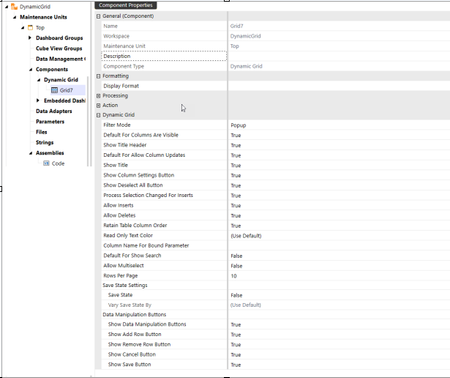
Are you frustrated by volume limitations and the inability to edit data in grid view? Do you find the SQL Table Editor restrictive because it only supports a single table? Are your items taking too long to load in these grids? Discover a smarter way to load data on dashboards and grids: the Dynamic Grid dashboard component. Traditionally, OneStream grids have been limited in customizations, flexibility, data retrieval and data manipulation. The Dynamic Grid changes that traditional pattern. It allows each of those items in a more robust and enhanced way. Also, the Dynamic Grid allows for multiple data sources from a single component (however out of scope for this article). The Dynamic Grid loads only the data you need—nothing more. Dynamic Grid delivers unmatched flexibility: you can customize your grid to fit your company’s exact requirements. Enjoy traditional column formatting from the SQL Table Editor, now enhanced with powerful row and specific cell formatting options. I could go on about how powerful this new dashboard component is—but you are here to learn how to set it up. Let us dive into an example of creating a Dynamic Grid. The Dynamic Grid relies on two out‑of‑the‑box functions: GetDynamicGridData and SaveDynamicGridData. GetDynamicGridData retrieves the data for display in the grid. SaveDynamicGridData persists changes made in the grid—whether you are adding, updating, or deleting rows. Together, these functions power efficient data retrieval and safe, transactional saves for the Dynamic Grid. GetDynamicGridData Example Code: The first line— If args.Component.Name.XFEqualsIgnoreCase("Grid7") Then —acts as a conditional check to segment multiple Dynamic Grids within the same assembly. In other words, it ensures that the logic applies only to the grid named Grid7. This name must exactly match the Dynamic Grid component name defined in your dashboard configuration. Immediately after the opening If condition, you will notice two key arguments: startRowIndex and pageSize. These variables define where the table should begin rendering and how many rows appear per page. Without them, the grid would attempt to render the entire data, which would create serious performance issues. Here is what you need to know about pageSize: pageSize is driven by the Rows Per Page property on the grid. By default, Rows Per Page is set to -1, which means the grid uses your security settings to determine row limits. If you specify any value other than -1, that value overrides the security setting. The maximum allowed page size is 3,000 rows per page. Setting these arguments correctly is critical for performance and user experience. The next few lines use standard OneStream and .NET objects to open a database connection and create a command—nothing unusual there. The real magic happens in the SQL query, which leverages the lesser known OFFSET and FETCH clauses for efficient paging. These functions allow you to return only the rows you need, rather than loading the entire dataset. Alternatively, you can implement paging by generating a RowNumber column and filtering with a WHERE clause, such as: “WHERE ((RowNumber >= {StartRowNumber}) AND (RowNumber <= {EndRowNumber}))” Both approaches achieve the same goal: controlled data retrieval for better performance. Note: When building a Dynamic Grid with SQL, always follow best practices for writing SQL queries. This ensures your solution is secure, efficient, and maintainable. Notice the StartRowNumber and EndRowNumber variables integers. These are driving the SQL parameters inside of the OffSet and Fetch section of the SQL query. Using parameters is essential for pagination because it ensures your query retrieves only the requested rows while preventing SQL injection. The next section of code handles data retrieval and paging metadata: First, a new DataTable is created and populated using the SQL query for the current page of records. Then, “Dim SQL As String” defines a COUNT query to determine the total number of rows in the underlying table. A second DataTable is used to execute this count query and retrieve the result. Finally, the line: “result.TotalNumRowsInOriginalDataTable = $"{dt(0)(0)}" assigns the total row count to the XFDataTable result object. This property is critical for paging—without it, the grid cannot calculate how many pages to display. In short: no total count, no paging. Once all the arguments are in place, the final step is to create the XFDynamicGridGetDataResult object. This constructor requires three key inputs: XFDataTable – The data table you populated earlier (e.g., the result variable). Column definitions – We will cover these in detail later in the article. DataAccessLevel – Determines how users interact with the grid data. You can choose from: .AllAccess – Full read/write access (most common for editable grids). .ReadOnly – Users can view but not modify data. .NoAccess – No data interaction allowed. For most scenarios involving data manipulation, .AllAccess is the recommended setting. Note: As of now, it’s on the roadmap for paging and the ability to ascend and descend columns. This functionality is not currently available as of the writing of this article. SaveDynamicGridData Example Code: In the previous section, we focused on rendering data. Now, let us shift to saving modified data, whether inserting, updating, or deleting rows. With the SQL Table Editor, save functionality is built in. However, the Dynamic Grid offers far greater flexibility, which means you will need to implement custom-saving logic. This approach gives you full control over: How data changes are processed Custom validation rules User messaging and error handling Custom saving functionality ensures your grid behaves exactly as your business requires. Let us break down the code for the SaveDynamicGridData Function step by step. In the save routine, you will see two argument objects sourced from args: Dim getDataArgs As DashboardDynamicGridGetDataArgs = args.GetDataArgs Retrieves context from the earlier GetDynamicGridData call (e.g., paging, filters, sort)—useful if your save logic needs to reference the current view. Dim saveDataArgs As DashboardDynamicGridGetDataArgs = args.SaveDataArgs Initializes the save payload: inserted, updated, and deleted rows, plus column metadata. Next, the code gathers what is editable: Dim editedDataRows As List(Of XFDataRow) = saveDataArgs.EditedDataRows Gets the list of rows that have been modified, inserted, or deleted. This is often the entire row set, but you can scope it to specific rows when only part of the data should be editable. Dim columns As List(Of XFDataColumn) = saveDataArgs.Columns Provides the columns list (names, types, formats) for the target table—critical for validation and parameter binding. You will also see a simple table name string (e.g., Dim tableName As String = "dbo.sample_data") to identify where the changes are saved, and a Boolean flag used later to control behavior (such as enabling/disabling validation or transactional commits). Finally, the code re-opens a database connection to perform the actual writes (insert, update, delete). This is done in the save path to keep read and write operations logically separated and to ensure that any transactional logic is scoped to the save operation. Now we are moving into the fun section of code. This opens with a Loop (For Each) of all our possible edited data. Then you see the Case Statement “editedDataRow.InsertUpdateOrDelete” This lets the application know that we want to apply the insert, update or delete functions to our available edited data rows variable. There is no easy part to the modified sections. Each of them takes their own separate lines of code that are functionally SQL Statements. As you can see from my previous screenshot, I have created three separate functions to dynamically run these queries. I will post these code snippets as an appendix to this blog. For the function of InsertDataRow, this is using the standard SL Insert statement. Now we get to the save loop. The routine starts with a For Each loop over the collection of edited rows. Inside the loop, a Select Case editedDataRow.InsertUpdateOrDelete directs the logic for each row, applying the appropriate insert, update, or delete operation. There is no shortcut here, each operation requires its own parameterized SQL command and validation. In the screenshot, you will see I’ve split the logic into three dedicated functions to keep the code clean and testable: InsertDataRow(...) UpdateDataRow(...) DeleteDataRow(...) I will include these helpers in the appendix for reference. For InsertDataRow, we use a standard SQL INSERT statement with parameters (not string concatenation), ensuring safety and better performance. INSERT INTO <tableName> (Column1, Column2, Column3) VALUES (Value1, Value2, Value3) The UpdateDataRow function uses a standard SQL UPDATE statement to modify existing records. Here’s the basic pattern: UPDATE <tableName> SET column1 = value1, column2 = value2 WHERE <condition> The DeleteDataRow function uses a standard SQL DELETE statement to remove records. Here’s the basic pattern: DELETE FROM <tableName> WHERE <condition> Now that we have done all this coding magic, what’s next? First, create an empty XFDynamicGridSaveDataResult: “Dim result as New XFDynamicGridSaveDataResult()” This step is non‑negotiable: you must send data back to the gird after the save. Without it, the grid will lose context and paging will break. That’s why this line is essential: “result.DataTable = GetDynamicGridData(si, brGlobals, workspace, args)?.DataTable” . By calling GetDynamicGridData again, you ensure the save result reflects the latest filters, sort order, and paging logic—keeping the user experience consistent after modifications. With the empty XFDynamicGridSaveDataResult created and the original data table rehydrated, the next step is to restore paging, so the user returns to the correct page after a save. Compute the current page index using VB.NET integer division: “result.PageIndex = (getDataArgs.StartRowIndex \ getDataArgs.PageSize)”. Finally, before returning the result, there’s one last piece of logic, a small but important snippet that ties everything together. This step ensures the save result object is fully populated with the data, paging info, and any additional metadata the grid needs to render correctly after modifications. result.SaveDataTaskResult = New XFDynamicGridSaveDataTaskResult() With { .IsOK = True, .ShowMessageBox = True, .Message = "Save Finished" } This allows us to assign the result to the XFDynamicGridSaveDataTaskResult. However, you will notice the “With” statement. This is a cool vb.net trick that allows you to assign a series of properties or arguments inside an enclosed block of code. Simply put, you wouldn’t have to keep assigning, result.isOk = True and so forth. This is a quick way to assign several properties that are related. This is where we assign values to the XFDynamicGridSaveDataTaskResult. You’ll notice a With block—an idiomatic VB.NET construct that lets you set multiple properties on the same object without repeating the variable name. In other words, instead of writing result.IsOk = True, result.PageIndex = …, and so forth line by line, you can group them neatly inside one block. Now that we have all this code in place, you can finally return the result. We’ve covered how to render data and how to save modified rows—but the Dynamic Grid’s most used reporting feature is its ability to apply conditional column formatting. This functionality mirrors the familiar options found in the SQL Table Editor, giving you full control over how columns look and behave based on dynamic conditions. Below is a screenshot of the SQL Table Editor column formatting properties. All these formatting properties are available in the Dynamic Grid—but only through code. You can apply them directly within the GetDynamicGridData function or encapsulate them in a dedicated formatting function for better organization and reuse. In my implementation, I chose the latter approach, creating a separate function to handle conditional column formatting. Inside the GetDynamicGridData function (see screenshot above), I added the following line: “Dim columnDefinitions As List(Of XFDynamicGridColumnDefinition) = Me.GetColumnDefinitions()”. This creates a list of XFDynamicGridColumnDefinition objects, which define the properties and formatting rules for each column in the grid. The call to Me.GetColumnDefinitions() retrieves these definitions from a dedicated function, keeping the logic clean and reusable. As you can see, this entire line of code is commented out. I wanted to highlight all the possible properties. If you look at the available properties, they match one-for-one with the properties that exist inside the SQL Table Editor component. You must initialize the variable named columnDefinition6, and as we previously discussed, the With statement is used here. Each of these properties should function exactly as they do within the SQL Table Editor. Once you have set the properties, you need to add them to the collection of column definitions. This is what you see with “columnDefinition.Add(columnDefinition#)”, which adds the specific column definition to the list of all column definitions. Finally, as with every function, the return clause simply returns the final output. In conclusion, we recognize that new code‑based components can feel intimidating at first. But with the insights from this blog, we hope we’ve lowered the barrier to entry and given you the confidence to start taking full advantage of this powerful new grid. InsertDataRow Sub Code Sample: UpdateDataRow Sub Code Sample: DeleteDataRow Sub Code Sample:1.2KViews4likes8Comments
OneStream - Piece by Piece
The core learning comes from first understanding the OneStream artifacts (the individual objects or components that make up the platform). A combination of these artifacts completes your application or solution (used, for example, to consolidate or plan). Or take advantage of OneStream’s solution exchange portal where there are numerous use cases that have the artifacts already pieced together readily available to download. Like any jigsaw puzzle, the box cover has the whole picture so you can see what the result will look like. Once opened you can lay out all the pieces on the table and study each individual tile to understand where each one fits in the bigger picture. Here is OneStream’s front cover of some of the artifacts: Here are the main pieces now laid out on the table: Dimensions : Classed as metadata, these are a set of related members. Each member in a dimension is an item name that labels, so to speak, the data it represents. So, if our dimension has been called Fruit, the members inside it could be named Oranges, Apples, Grapes, and Peaches, and the data for each item could point to unit sales. Dimensions are built per dimension type as follows: Entity Dimension: The organization’s business areas used for statutory or management reporting. Scenario Dimension: A version of data that can reflect various Scenario Types such as Actual, Budget, or Forecast. Account Dimension: The structure representing the organization’s chart of accounts, both financial and non-financial members. Flow Dimension: Set up to provide the movements and details on how account values change over time. User Defined (UD) Dimension: The ability to create hierarchies that can be used to analyze a report further, such as products, regions, or cost centers. Parent: Resides within the Entity dimension and provides the mechanism to further break down an entity’s business area. Intercompany: Determines which entities within the Entity dimension trade in the group and are involved with intercompany activity. Time Dimension: Data can be stored and reported at weekly, monthly, quarterly, half-yearly, and yearly levels. Consolidation Dimension: Provides the analysis of rolled-up data from its local currency to translation, share, elimination, adjustments, and final value in the parent entity’s member. Origin Dimension: Identifies the data’s origin with an import, form entry, or journal adjustment. View Dimension: Shows the data from different perspectives, for example, year-to-date, month-to-date, or quarter-to-date. Cube: A collection of relevant dimensions to form a multi-dimensional financial model that has data for analyzing and reporting. FX Rates: The currency codes used for currency exchange rates. Import: A mapping setup of the source file to the target cube for the purpose of loading data. Forms: A manual (or import option if required) way of entering data into sheets for the purpose of collating values. For example, headcount. Journals: Adjustments to the loaded data, providing governance of when and who performed the adjustment. As well as manually creating the journal, there is also an import feature that is able to create the journal using an Excel or Comma Separated Values file. Transformation Rules: The rules behind which source items map to which target items. Confirmation Rules: A developer-built data quality check feature to prevent continuation of the workflow until all is acceptable. For example, the balancing of a balance sheet. Certification Questions: Use of a questionnaire to sign off on data as acceptable. Cube Views: The main building blocks for reports and dashboards, used to display and/or enter cube data. Dashboards: Developers design dashboards to display data in a user-friendly manner and can set them to be an end-user’s landing page, Workspace in a workflow, or a series of guided reporting selections. Spreadsheets: A spreadsheet workbook directly connected to OneStream data that can be displayed and updated in real time. Report Books: A combination of different report types to form a report pack that can be distributed to stakeholders. Extensible Documents: A blend of OneStream content with Microsoft content that references OneStream data. Workflow: A guided approach for users to complete specific assigned tasks at specific times. Security: A way to permit users to only access objects relevant to their tasks in OneStream The OneStream fundamentals book extends further on all the above pieces and is the concise starter guide for anyone new to corporate performance management and specifically the OneStream world. It will take you through OneStream’s journey that will be your road map to understanding the platforms metadata, data import, calculations, workflow, reporting topics and much more … Enjoy!636Views6likes0Comments
Stop confusion with empty parameters in Dashboards
Tired of opening your dashboard to find no pre-populated values? Frustrated when your combo boxes and list boxes don’t display a value upon runtime? This brief blog post will assist admins/super users in populating those values to avoid confusion for end users when they open a dashboard devoid of any values.2.3KViews15likes5CommentsMenu Component in Practice
If you create the new Menu Component in your Maintenance Unit, you will quickly notice that it has very few properties. That's because its configuration will actually come from an attached Data Adapter, which must produce a set of tables containing all menu items and their configuration. The format of such tables has to be somewhat precise, matching what the component expects. For this reason, the best way to produce them (at least while you familiarize yourself with this mechanism) is to create a Dashboard DataSet using a couple of utility classes built for this specific task. The first thing we will do, in our rule, is to create an XFMenuItemCollection object. This represents our menu, which we will populate with items and eventually return (as a DataSet) at the end of the function. Public Function Main(ByVal si As SessionInfo, ByVal globals As BRGlobals, ByVal api As Object, ByVal args As DashboardDataSetArgs) As Object Try Select Case args.FunctionType Case Is = DashboardDataSetFunctionType.GetDataSet If args.DataSetName.XFEqualsIgnoreCase("MainMenu") Then ' create the menu object Dim menu As New XFMenuItemCollection() Menu items will be created by instantiating objects of type XFMenuItem. These objects will hold all the configuration properties for the item, including the font and colors that it will use. There are a few different constructors you can use, to specify all sorts of properties; the one used here is the shortest one! ' create top-level item ' XFMenuItem(string uniqueName, string headerText, string foreground, string background, bool isBold, bool isItalic, bool isEnabled, bool isSeparator, string parameterValue) Dim parentMenuItemOne As New XFMenuItem("1", "Parent", _ "White", "SlateGray", False, False, True, False, Nothing) ' create items for the second level Dim childMenuItemOne As New XFMenuItem("1.1", "Child 1", _ "Black", "White", True, True, True, False, Nothing) Dim childMenuItemTwo As New XFMenuItem("1.2", "Child 2", _ "Black", "White", True, True, True, False, Nothing) ' create item for the third level Dim grandChildMenuItemOne As New XFMenuItem("1.1.1", "Grandchild 1", _ "White", "SlateGray", True, True, True, False, Nothing) Most of the properties are self-explanatory, but you might wonder what "parameterValue" is. That's the value that will be pushed into the Bound Parameter specified on the actual component later on, so that Actions or other components can pick it up. We will come back to this later. Now we need to define the relationships between items. We do that by manipulating the .Children property of each parent item, which must be a list containing the children (duh!) items. ' create the hierarchy by adding children to direct parents as a List ' attach 1.1.1 as a child of 1.1 childMenuItemOne.Children = New List(Of XFMenuItem) From {grandChildMenuItemOne} ' attach 1.1 as a child of 1 parentMenuItemOne.Children = New List(Of XFMenuItem) From {childMenuItemOne} ' you can also manipulate the list once created. ' attach 1.2 as a child of 1 parentMenuItemOne.Children.Add(childMenuItemTwo) In a similar way, top-level items are added to the list contained in the .MenuItems property of our XFMenuItemCollection instance. ' add item 1 as a top-level members of the menu menu.MenuItems.Add(parentMenuItemOne) Before we return the resulting menu, if you are dealing with dynamically-generated structures with a lot of members, you might want to perform a safety check and purge extra members: While menu.IsAboveMaxMenuItemLimit(si) menu.MenuItems.RemoveAt(menu.MenuItems.Count - 1) End While Last, we use the .CreateDataSet method of our menu object to return the DataSet. ' generate the dataset and return it Return menu.CreateDataSet(si) Now that we have the rule, we can create a DataAdapter to execute it. Notice how, when testing it, it produces two tables: one with item properties, and one with their relationships. Now that we have an Adapter, we can create the Menu Component and attach the Adapter to it. You can then assign it to a Dashboard and preview it, after you save it. This is fun but a bit pointless! We want menus so that the user will actually choose something and we'll get the result of that choice. In order to do that, we need to specify the Bound Parameter. Whenever the user selects an item, the "parameterValue" associated with that item will be pushed into the specified Parameter; we can then reference that Parameter in an Action or extender rule, to trigger something like navigating to a website. Note that the Parameter doesn't need to exist! OneStream will just create one for you in the background. Then we place an Action on our Component, referring to the Parameter. The last step is to go back to our rule and specify a different parameterValue for "leaf" items, so that the Parameter will contain something. Dim childMenuItemTwo As New XFMenuItem("1.2", "Main Page", _ "Black", "White", True, True, True, False, "https://www.onestream.com") ' create item for the third level Dim grandChildMenuItemOne As New XFMenuItem("1.1.1", "OneCommunity", _ "White", "SlateGray", True, True, True, False, "https://community.onestreamsoftware.com") Et voilà! You can now execute the Dashboard and verify that it works!739Views8likes4Comments