The OneStream Community is temporarily frozen until June 29th due to the ongoing maintenance. Please read the blog post here to learn more.
line item modeling (lim)
20 Topics
Issue in adding data to LIM WF model
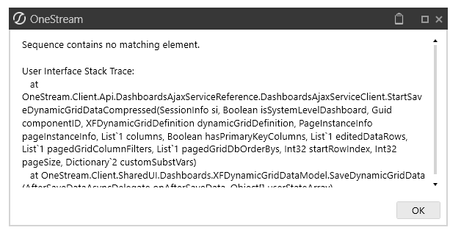
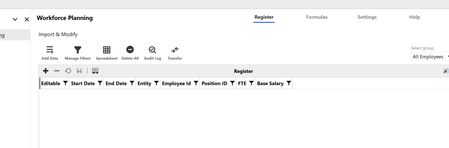
In LIM WF model, I have created register with only 7 fields, Start Date, End Date, Entity, Employee id, Position id, FTE and Base Salary. Created two accounts FTE and Base Salary to copy data to people cube. Now when I am trying to add row, it is not adding any data in but its not showing in register. If i check database table I can see data. Earlier I have uninstalled LIM and WF multiple times to check if the issue gets resolved but still in same place. Any help will be good.30Views0likes0CommentsLIM: Example of Setting up my Customizations Outside of LIM’s Workspace(s) for Future Upgrades
DISCLAIMER: It should be noted that the focus of this technical guide is to provide general information, considerations, and guidelines for an identified topic. It is NOT to be interpreted as the ONLY approach nor a guarantee that there will not be any issues encountered by using this approach as a customer’s requirements or application configuration may render this guidance as not applicable. In addition, statements that “we believe” and similar statements reflect our beliefs and opinions on the relevant subject. These statements are based upon information available to us as of the date of this article, and while we believe such information forms a reasonable basis for such statements, such information may be limited or incomplete, and our statements should not be read to indicate that we have conducted an exhaustive inquiry into, or review of, all potentially available relevant information. OneStream does not warrant as to the accuracy of this guidance, which is provided on an as-is basis. Any forward-looking statements contained herein are based on information available at the time those statements are made and/or good faith beliefs and assumptions as of that time with respect to future events and are subject to risks and uncertainties that could cause actual performance or results to differ materially from those expressed in or suggested by the forward-looking statements. Considering these risks and uncertainties, the forward-looking events and circumstances discussed in this guide may not occur and actual results could differ materially from those anticipated or implied in the forward-looking statements. VERSION: PV900 SV120 PLATFORM: 9.2.0 WHY DOES THIS MATTER? To handle future upgrades! By having customizations sit outside of LIM-related Workspaces, the risk of rework or override is minimized. I’ll cover the initial customizations setup and the step-by-step examples of how upgrades are handled. There are three main parts CustomEventHandler initial setup: download and upload the CustomEventHandler file, then update the Workspace Assembly Services on the CodeOnly (XXX) and Workspace Create a custom workspace and copy the Assembly from your LIM-related workspace to your custom workspace. Update assembly code accordingly. Create the dependency within the LIM-related Workspace CustomEventHandler Initial Setup Go to Files under your Workforce Planning # workspace (or LIM-related workspace). You should see a File with a name along the lines of CustomServiceFactory_XXX.zip. NOTE: XXX represents the prefix/suffix for your LIM-selected solution (e.g., Workforce, Duration, Term) Download the .zip and then Load this via Application > Load/Extract Update the Maintenance Unit > CodeOnly (XXX) “Workspace Assembly Service” to CustomEventHandler_XXX.WsAssemblyFactory. NOTE: XXX represents the prefix/suffix for your LIM-selected solution. In my example, the file is CustomServiceFactory_PLN so notice that my Workspace Assembly Service is updated accordingly. Before After Update the Workspace’s Workspace Assembly Service as well from XXX.WsAssemblyFactory to CustomEventHandler_XXX.WsAssemblyFactory NOTE: XXX represents the prefix/suffix for your LIM-selected solution. In my example, the file is CustomServiceFactory_PLN so notice that my Workspace Assembly Service is updated accordingly. Before After Upon refresh, you will see CustomEventHandler_XXX assembly component under your CodeOnly (XXX) Maintenance Unit. Custom Workspace Setup Create new workspace (e.g. Workforce Planning Custom) Set Is Shareable Workspace = True Give it a Namespace Prefix. THIS IS IMPORTANT. REMEMBER TO DO SO. After creating the new workspace (e.g. Workforce Planning Custom), within that workspace create a DMU (e.g. custom as shown below) Copy the CustomEventHandler assembly from your LIM-related workspace) Paste it into your newly created Workspace. In my example, I am pasting it to my Workforce Planning Custom’s Custom Maintenance Unit Rename the Assembly. This can be done by clicking on the Assembly Properties tab and then clicking on the Rename button. In my example, because I have copied the CustomEventHandler assembly from Workforce Planning 2 into my Workforce Planning Custom, I am going to use PLNB2 as the suffix; remember PLNB2 is Workforce Planning 2’s Namespace Prefix. Click into the Assembly component under your Custom Maintenance Unit. Click on the WsAssemblyFactory file. Update ALL the lines to reference the source Workspace (in my example, I updated these lines to reference that of Workforce Planning 2 [prefix of PLNB2]). Another example (I am in the WsAssemblyFactory file). The 4 highlighted rows are going to correspond to your specific customizations that you will then write into the corresponding Services files. Click into each of the Services files and update to your source Workforce Planning instance. Create the Dependency in your LIM-Related Workspace Go back to your source Workforce Planning instance’s CustomEventHandler_PLN assembly and Add Dependency. Fill in the details. Example below. Import your separate workspace in the WsAssemblyFactory file (Workspace.NAMESPACEPREFIX.ASSEMBLYNAME) Update your WsAssemblyFactor lines to reference your custom Assembly. Walk-though of an Upgrade after Implementing this Custom Workspace Load the latest LIM version into the application Go to specifically Line Item Modeling Installer workspace > click on Uninstall or upgrade existing instance of Planning > select relevant workspace > Upgrade REFRESH application then you will see your dashboard under the Workspace appear. CustomEventHandler will be removed, so you will need to go to Files, under CodeOnly (PLN) and download the CustomServiceFactory_PLN.zip. Upload this zip to the application. Update Maintenance Unit > CodeOnly (PLN) "Workspace Assembly Service" to CustomEventHandler_PLN.WsAssemblyFactory. Update Workspaces > Workforce Planning 2 "Workspace Assembly Service" to CustomEventHandler_PLN.WsAssemblyFactory. In CustomEventHandler_PLN, add Dependency and reference the Assembly from your dedicated custom Workforce-related workspace. Add in the import to the WsAssemblyFactory file in CustomEventHandler_PLN Update the relevant ServiceType(s) Your custom code is good to go!410Views4likes2CommentsHeadcount calc in LIM WF Model
Is there any way to calculate Headcount where I will use start Data and end date of Current period. If the difference is more than 1 then my HC is 1, I cannot use current period end date in Formula, I tried IIF (DateDiff(month, start date, Current Period)>1,1,0) but it is not giving me any result51Views0likes2Comments
WorkforcePlanning Revert/Complete Workflow
Hi All, Is there a way to revert the workflow within the solution? We are using the workspace step, and we cannot revert to add more rows to the grid because it remains green once an import has started. Hope to get insights. Thank you.37Views0likes0CommentsLIM: Example of Register Field Population from a Workspace File 3
DISCLAIMER: It should be noted that the focus of this technical guide is to provide general information, considerations, and guidelines for an identified topic. It is NOT to be interpreted as the ONLY approach nor a guarantee that there will not be any issues encountered by using this approach as a customer’s requirements or application configuration may render this guidance as not applicable. In addition, statements that “we believe” and similar statements reflect our beliefs and opinions on the relevant subject. These statements are based upon information available to us as of the date of this article, and while we believe such information forms a reasonable basis for such statements, such information may be limited or incomplete, and our statements should not be read to indicate that we have conducted an exhaustive inquiry into, or review of, all potentially available relevant information. OneStream does not warrant as to the accuracy of this guidance, which is provided on an as-is basis. Any forward-looking statements contained herein are based on information available at the time those statements are made and/or good faith beliefs and assumptions as of that time with respect to future events and are subject to risks and uncertainties that could cause actual performance or results to differ materially from those expressed in or suggested by the forward-looking statements. Considering these risks and uncertainties, the forward-looking events and circumstances discussed in this guide may not occur and actual results could differ materially from those anticipated or implied in the forward-looking statements. VERSION: PV900 SV200 PLATFORM: 9.2.0 USE CASE: your customer wants a standard repository to store supplementary information to be used to populate certain Register Fields. In this example, a list of job codes and its descriptions is handled as a Spreadsheet component within an OneStream dashboard. Every time a user selects a job code or inputs a job code in the Register, the expectation is that the Job Code Description register field is populated with the description that is from this workbook. PURPOSE: to provide you with an example that you can leverage as part of your build, whether you decide to incorporate this to existing input options (Register, Spreadsheet, Import File, Connector). NOTE(S): my example assumes that this file is a .csv, not .xlsx and it is placed in the target Workspace as part of the Files section. ASSUMPTIONS: The relevant Register Fields have already been created. In my example, I have JobCode and JobCodeDescription register fields. The .csv is uploaded to the workspace as a Workspace file. A simple dashboard that allows the Administrator or select users to update the file. I will be splitting this approach into three articles - 1 which will cover WsComponentService, 2 which will cover WorkforcePlanningImportRegisterConnector, and 3 which will cover WsDynamicGridService and WsTableViewService. WsDynamicGridService: Register Below is an example of how I arranged my logic within my BeforeEvent. The below is an example of the logic associated with populateJobCodeDesc1. The screenshots as code below. private static void populateJobCodeDesc1(SessionInfo si, DashboardDynamicGridArgs args) { List<string> invalidJobCodes = new List<string>(); // Load the dashboard file into memory bool isSystemLevel = false; string sourceWorkspaceName = "Workforce Planning Custom"; Guid workspaceIDIfNotInName = BRApi.Dashboards.Workspaces.GetWorkspaceIDFromName(si, isSystemLevel, sourceWorkspaceName); string fileName = "spd_JobCodes.csv"; DashboardFileResource sourceFile = BRApi.Dashboards.FileResources.GetFileResource(si, isSystemLevel, workspaceIDIfNotInName, fileName); string textContent = System.Text.Encoding.UTF8.GetString(sourceFile.FileBytes); // Split into lines string[] lines = textContent.Split(new[] { "\r\n", "\r", "\n" }, StringSplitOptions.RemoveEmptyEntries); // Detect delimiter from the first line char delimiter = ','; if (lines.Length > 0) { string firstLine = lines[0]; if (firstLine.Contains("\t")) delimiter = '\t'; else if (firstLine.Contains(";")) delimiter = ';'; else if (firstLine.Contains("|")) delimiter = '|'; // Default stays as comma } // Parse file into dictionary: JobCode -> JobCodeDesc Dictionary<string, string=""> jobCodeLookup = new Dictionary<string, string="">(StringComparer.OrdinalIgnoreCase); foreach (string line in lines) { string[] parts = line.Split(delimiter); if (parts.Length >= 2) { string code = parts[0].Trim(); string desc = parts[1].Trim(); if (!jobCodeLookup.ContainsKey(code)) { jobCodeLookup[code] = desc; } } } // now process the edited rows if (args.SaveDataArgs != null) { foreach (XFEditedDataRow row in args.SaveDataArgs.EditedDataRows) { if (row.InsertUpdateOrDelete != DbInsUpdateDelType.Update) continue; string jcName = row.ModifiedDataRow.Items["JobCode"].ToString(); string empId = row.ModifiedDataRow.Items["EmployeeID"].ToString(); string jcDescription = null; try { if (jobCodeLookup.TryGetValue(jcName, out jcDescription)) { row.ModifiedDataRow.Items["JobCodeDescription"] = jcDescription; } else { // Not found in file = invalid job code invalidJobCodes.Add($"EmployeeID {empId}, JobCode {jcName}"); row.ModifiedDataRow.Items["JobCodeDescription"] = null; } } catch { // Any exception = treat as invalid invalidJobCodes.Add($"EmployeeID {empId}, JobCode {jcName}"); row.ModifiedDataRow.Items["JobCodeDescription"] = null; } } } if (invalidJobCodes.Count > 0) { string errorMessage = "Invalid job codes detected:" + Environment.NewLine + string.Join(Environment.NewLine, invalidJobCodes); throw new XFException(si, new Exception(errorMessage)); } }</string,></string,></string></string> WsTableViewService: Spreadsheet Below is an example of how I arranged my logic within my BeforeEvent. The below is an example of the populateJobCodeDesc1 logic. Because I am pulling from a SQL and then processing each table view-related row one by one, it is more performant to have the XFC table cached once in memory. It is also important to only process rows with the valid information so I have a section to identify which rows to skip. The screenshots as code below. private static void populateJobCodeDesc1(SessionInfo si, BRGlobals brGlobals, DashboardWorkspace workspace, TableView tableView) { // Load the workspace file into memory bool isSystemLevel = false; string sourceWorkspaceName = "Workforce Planning Custom"; Guid workspaceIDIfNotInName = BRApi.Dashboards.Workspaces.GetWorkspaceIDFromName(si, isSystemLevel, sourceWorkspaceName); string fileName = "spd_JobCodes.csv"; DashboardFileResource sourceFile = BRApi.Dashboards.FileResources.GetFileResource(si, isSystemLevel, workspaceIDIfNotInName, fileName); string textContent = System.Text.Encoding.UTF8.GetString(sourceFile.FileBytes); // Split into lines string[] lines = textContent.Split(new[] { "\r\n", "\r", "\n" }, StringSplitOptions.RemoveEmptyEntries); // Detect delimiter from the first line char delimiter = ','; if (lines.Length > 0) { string firstLine = lines[0]; if (firstLine.Contains("\t")) delimiter = '\t'; else if (firstLine.Contains(";")) delimiter = ';'; else if (firstLine.Contains("|")) delimiter = '|'; // Default stays as comma } // Parse file into dictionary: JobCode -> JobCodeDesc Dictionary<string, string=""> jobCodeLookup = new Dictionary<string, string="">(StringComparer.OrdinalIgnoreCase); foreach (string line in lines) { string[] parts = line.Split(delimiter); if (parts.Length >= 2) { string code = parts[0].Trim(); string desc = parts[1].Trim(); if (!jobCodeLookup.ContainsKey(code)) { jobCodeLookup[code] = desc; } } } var invalidJobCodes = new List<string>(); foreach (var row in tableView.Rows) { //identify rows to skip if (row.IsHeader) continue; var originalStatus = row.Items["Status"].Value?.ToString(); if (string.IsNullOrWhiteSpace(originalStatus)) continue; if (!row.Items["JobCode"].IsDirty()) continue; string jcName = row.Items["JobCode"].Value?.ToString(); string empId = row.Items["EmployeeID"].Value?.ToString(); if (jobCodeLookup.TryGetValue(jcName, out var jcDescription)) { row.Items["JobCodeDescription"].Value = jcDescription; } else { invalidJobCodes.Add($"EmployeeID {empId}, JobCode {jcName}"); row.Items["JobCodeDescription"].Value = null; } } if (invalidJobCodes.Count > 0) { string errorMessage = "Invalid job codes detected:" + Environment.NewLine + string.Join(Environment.NewLine, invalidJobCodes); throw new XFException(si, new Exception(errorMessage)); } }</string></string,></string,> Read Part One Read Part Two50Views0likes0CommentsLIM: Example of Register Field Population from a Workspace File 2
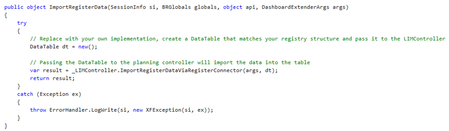
DISCLAIMER: It should be noted that the focus of this technical guide is to provide general information, considerations, and guidelines for an identified topic. It is NOT to be interpreted as the ONLY approach nor a guarantee that there will not be any issues encountered by using this approach as a customer’s requirements or application configuration may render this guidance as not applicable. In addition, statements that “we believe” and similar statements reflect our beliefs and opinions on the relevant subject. These statements are based upon information available to us as of the date of this article, and while we believe such information forms a reasonable basis for such statements, such information may be limited or incomplete, and our statements should not be read to indicate that we have conducted an exhaustive inquiry into, or review of, all potentially available relevant information. OneStream does not warrant as to the accuracy of this guidance, which is provided on an as-is basis. Any forward-looking statements contained herein are based on information available at the time those statements are made and/or good faith beliefs and assumptions as of that time with respect to future events and are subject to risks and uncertainties that could cause actual performance or results to differ materially from those expressed in or suggested by the forward-looking statements. Considering these risks and uncertainties, the forward-looking events and circumstances discussed in this guide may not occur and actual results could differ materially from those anticipated or implied in the forward-looking statements. VERSION: PV900 SV200 PLATFORM: 9.2.0 USE CASE: your customer wants a standard repository to store supplementary information to be used to populate certain Register Fields. In this example, a list of job codes and its descriptions is handled as a Spreadsheet component within an OneStream dashboard. Every time a user selects a job code or inputs a job code in the Register, the expectation is that the Job Code Description register field is populated with the description that is from this workbook. PURPOSE: to provide you with an example that you can leverage as part of your build, whether you decide to incorporate this to existing input options (Register, Spreadsheet, Import File, Connector). NOTE(S): my example assumes that this file is a .csv, not .xlsx and it is placed in the target Workspace as part of the Files section. ASSUMPTIONS: The relevant Register Fields have already been created. In my example, I have JobCode and JobCodeDescription register fields. The .csv is uploaded to the workspace as a Workspace file. A simple dashboard that allows the Administrator or select users to update the file. I will be splitting this approach into three articles - 1 which will cover WsComponentService, 2 which will cover WorkforcePlanningImportRegisterConnector, and 3 which will cover WsDynamicGridService and WsTableViewService. WorkforcePlanningImportRegisterConnector#*: ImportRegisterData (to handle connector) *Business rule name may be different depending on the LIM selection and number of workspaces created. Before: this is before any customizations. This is what your ImportRegisterData should start out as. After: example of how it could be re-arranged to handle customizations, especially if there are multiple customizations. NOTE: if you plan to use StringBuilder() instead of declaring the variable as a string in your WorkforcePlanningImportRegisterConnector#* rule, you will need to import System.Text into the business rule. StringBuilder() is a method group so it will also have to be referenced as sql.ToString() as part of the BRApi.Database.ExecuteSql line. Example code for populateJobCodeDesc1, which uses a workspace file private static void populateJobCodeDesc1(SessionInfo si, BRGlobals brGlobals, DashboardExtenderArgs args, DataTable registerRows) { var errorList = new List<string>(); var invalidJobCodes = new HashSet<string>(StringComparer.OrdinalIgnoreCase); try { // Load the dashboard file into memory bool isSystemLevel = false; string sourceWorkspaceName = "Workforce Planning Custom"; Guid workspaceIDIfNotInName = BRApi.Dashboards.Workspaces.GetWorkspaceIDFromName(si, isSystemLevel, sourceWorkspaceName); string fileName = "spd_JobCodes.csv"; DashboardFileResource sourceFile = BRApi.Dashboards.FileResources.GetFileResource(si, isSystemLevel, workspaceIDIfNotInName, fileName); string textContent = System.Text.Encoding.UTF8.GetString(sourceFile.FileBytes); // Split into lines string[] lines = textContent.Split(new[] { "\r\n", "\r", "\n" }, StringSplitOptions.RemoveEmptyEntries); // Detect delimiter from the first line char delimiter = ','; if (lines.Length > 0) { string firstLine = lines[0]; if (firstLine.Contains("\t")) delimiter = '\t'; else if (firstLine.Contains(";")) delimiter = ';'; else if (firstLine.Contains("|")) delimiter = '|'; } // Parse file into dictionary: JobCode -> JobCodeDesc Dictionary<string, string=""> jobCodeLookup = new Dictionary<string, string="">(StringComparer.OrdinalIgnoreCase); foreach (string line in lines) { string[] parts = line.Split(delimiter); if (parts.Length >= 2) { string code = parts[0].Trim(); string desc = parts[1].Trim(); if (!jobCodeLookup.ContainsKey(code)) { jobCodeLookup[code] = desc; } } } // Process register rows using var dbConn = BRApi.Database.CreateApplicationDbConnInfo(si); int rowNumber = 0; foreach (DataRow regRow in registerRows.Rows) { rowNumber++; string jcName = regRow["JobCode"].ToString(); string empId = regRow["EmployeeID"].ToString(); string jcDescription; if (jobCodeLookup.TryGetValue(jcName, out string desc)) { BRApi.ErrorLog.LogMessage(si, $"desc: {desc}"); jcDescription = desc; } else { jcDescription = "INVALID JOB CODE"; invalidJobCodes.Add(jcName); errorList.Add($"Row {rowNumber}, EmployeeID {empId}, JobCode '{jcName}': INVALID JOB CODE"); } // Update staging table string updateSql = $@" UPDATE [limb2].XFW_LIM_StageRegister SET JobCodeDescription = '{SqlStringHelper.EscapeSqlString(jcDescription)}' WHERE JobCode = '{SqlStringHelper.EscapeSqlString(jcName)}'; "; BRApi.Database.ExecuteSql(dbConn, updateSql, false); } // Report invalids if any if (errorList.Count > 0) { string errorMessage = "Some JobCodes were marked as INVALID:" + Environment.NewLine + string.Join(Environment.NewLine, errorList); throw new XFException(si, new Exception(errorMessage)); } } catch (Exception ex) { throw ErrorHandler.LogWrite(si, new XFException(si, ex)); } }</string,></string,></string></string> Read Part One Read Part Three56Views0likes0CommentsLIM: Example of Register Field Population from a Workspace File 1
DISCLAIMER: It should be noted that the focus of this technical guide is to provide general information, considerations, and guidelines for an identified topic. It is NOT to be interpreted as the ONLY approach nor a guarantee that there will not be any issues encountered by using this approach as a customer’s requirements or application configuration may render this guidance as not applicable. In addition, statements that “we believe” and similar statements reflect our beliefs and opinions on the relevant subject. These statements are based upon information available to us as of the date of this article, and while we believe such information forms a reasonable basis for such statements, such information may be limited or incomplete, and our statements should not be read to indicate that we have conducted an exhaustive inquiry into, or review of, all potentially available relevant information. OneStream does not warrant as to the accuracy of this guidance, which is provided on an as-is basis. Any forward-looking statements contained herein are based on information available at the time those statements are made and/or good faith beliefs and assumptions as of that time with respect to future events and are subject to risks and uncertainties that could cause actual performance or results to differ materially from those expressed in or suggested by the forward-looking statements. Considering these risks and uncertainties, the forward-looking events and circumstances discussed in this guide may not occur and actual results could differ materially from those anticipated or implied in the forward-looking statements. VERSION: PV900 SV200 PLATFORM: 9.2.0 USE CASE: your customer wants a standard repository to store supplementary information to be used to populate certain Register Fields. In this example, a list of job codes and its descriptions is handled as a Spreadsheet component within an OneStream dashboard. Every time a user selects a job code or inputs a job code in the Register, the expectation is that the Job Code Description register field is populated with the description that is from this .csv. PURPOSE: to provide you with an example that you can leverage as part of your build, whether you decide to incorporate this to existing input options (Register, Spreadsheet, Import File, Connector). NOTE(S): my example assumes that this file is a .csv, not .xlsx and it is placed in the target Workspace as part of the Files section. ASSUMPTIONS: The relevant Register Fields have already been created. In my example, I have JobCode and JobCodeDescription register fields. The .csv is uploaded to the workspace as a Workspace file. A simple dashboard that allows the Administrator or select users to update the file. I will be splitting this approach into three articles - 1 which will cover WsComponentService, 2 which will cover WorkforcePlanningImportRegisterConnector, and 3 which will cover WsDynamicGridService and WsTableViewService. A) WsComponentService: ImportRegisterData (to handle importing files) Example logic to handle populating the JobCodeDescription for WsComponentService: NOTE: I am putting in a sample code equivalent below which pertains to SV200 as the table names have changed from PLN to LIM. private static void populateJobCodeDesc1(SessionInfo si, BRGlobals brGlobals, DashboardWorkspace workspace, DashboardExtenderArgs args,XFSelectionChangedTaskResult taskResult) { int rowNumber = 0; var errorList = new List<string>(); var invalidJobCodes = new List<string>(); try { DataTable registerRows = GetRegisterRows(si); // Load lookup file once into memory (cached dictionary) bool isSystemLevel = false; string sourceWorkspaceName = "Workforce Planning Custom"; Guid workspaceID = BRApi.Dashboards.Workspaces.GetWorkspaceIDFromName(si, isSystemLevel, sourceWorkspaceName); string fileName = "spd_JobCodes.csv"; DashboardFileResource sourceFile = BRApi.Dashboards.FileResources.GetFileResource(si, isSystemLevel, workspaceID, fileName); string textContent = System.Text.Encoding.UTF8.GetString(sourceFile.FileBytes); string[] lines = textContent.Split(new[] { "\r\n", "\r", "\n" }, StringSplitOptions.RemoveEmptyEntries); char delimiter = DetectDelimiter(lines); Dictionary<string, string=""> jobCodeLookup = BuildJobCodeLookup(lines, delimiter); // Chunk updates to prevent excessively large SQL strings const int batchSize = 500; int statementsInBatch = 0; var sqlBatch = new System.Text.StringBuilder(capacity: 64 * 1024); var connInfo = BRApi.Database.CreateApplicationDbConnInfo(si); foreach (DataRow regRow in registerRows.Rows) { rowNumber++; string jcName = regRow["JobCode"]?.ToString()?.Trim() ?? string.Empty; string empId = regRow["EmployeeID"]?.ToString()?.Trim() ?? string.Empty; string jcDescription; if (!string.IsNullOrEmpty(jcName) && jobCodeLookup.TryGetValue(jcName, out jcDescription)) { regRow["JobCodeDescription"] = jcDescription ?? string.Empty; } else { jcDescription = "INVALID JOB CODE"; if (!string.IsNullOrEmpty(jcName)) invalidJobCodes.Add(jcName); errorList.Add($"Row {rowNumber}, EmployeeID {empId}, JobCode '{jcName}': INVALID JOB CODE"); } // Escape for SQL safety string escDesc = SqlStringHelper.EscapeSqlString(jcDescription); string escJc = SqlStringHelper.EscapeSqlString(jcName); string escEmp = SqlStringHelper.EscapeSqlString(empId); // If your staging table has a unique row key (recommended), use that instead. sqlBatch.AppendLine($@" UPDATE [limb2].XFW_LIM_StageRegister SET JobCodeDescription = '{escDesc}' WHERE EmployeeID = '{escEmp}' AND JobCode = '{escJc}';"); statementsInBatch++; // Execute in chunks if (statementsInBatch >= batchSize) { BRApi.Database.ExecuteSql(connInfo, sqlBatch.ToString(), false); sqlBatch.Clear(); statementsInBatch = 0; } } // Flush remaining batch if (statementsInBatch > 0) { BRApi.Database.ExecuteSql(connInfo, sqlBatch.ToString(), false); } if (errorList.Count > 0) { string errorMessage = "Some JobCodes were marked as INVALID:" + Environment.NewLine + string.Join(Environment.NewLine, errorList); throw new XFException(si, new Exception(errorMessage)); } } catch (XFException) { throw; } catch (Exception ex) { throw new XFException(si, new Exception("Unexpected error occurred: " + ex.Message, ex)); } } private static char DetectDelimiter(string[] lines) { // Default comma; inspect the first non-empty line foreach (var ln in lines) { var line = ln?.Trim(); if (string.IsNullOrEmpty(line)) continue; // Prefer tab/semicolon/pipe if present if (line.Contains("\t")) return '\t'; if (line.Contains(";")) return ';'; if (line.Contains("|")) return '|'; return ','; // default } return ','; // fallback } private static Dictionary<string, string=""> BuildJobCodeLookup(string[] lines, char delimiter) { var dict = new Dictionary<string, string="">(StringComparer.OrdinalIgnoreCase); bool headerSkipped = false; foreach (string raw in lines) { string line = raw?.Trim(); if (string.IsNullOrEmpty(line)) continue; var fields = ParseDelimitedLine(line, delimiter); if (fields.Count < 2) continue; string code = (fields[0] ?? string.Empty).Trim(); string desc = (fields[1] ?? string.Empty).Trim(); // Skip header row once if it looks like a header if (!headerSkipped && LooksLikeHeader(code, desc)) { headerSkipped = true; continue; } if (string.IsNullOrEmpty(code)) continue; // First occurrence wins (avoid overwrite) if (!dict.ContainsKey(code)) dict[code] = desc; } return dict; } private static bool LooksLikeHeader(string first, string second) { string a = (first ?? string.Empty).Trim(); string b = (second ?? string.Empty).Trim(); // Minimal header detection: common names return a.Equals("JobCode", StringComparison.OrdinalIgnoreCase) || a.Equals("Job Code", StringComparison.OrdinalIgnoreCase) || b.Equals("JobCodeDesc", StringComparison.OrdinalIgnoreCase) || b.Equals("Job Code Desc", StringComparison.OrdinalIgnoreCase) || b.Equals("JobCodeDescription", StringComparison.OrdinalIgnoreCase); } private static List<string> ParseDelimitedLine(string line, char delimiter) { var result = new List<string>(8); if (line == null) { result.Add(string.Empty); return result; } var sb = new System.Text.StringBuilder(); bool inQuotes = false; for (int i = 0; i < line.Length; i++) { char c = line[i]; if (c == '"') { // If we're in quotes and next char is also quote, it's an escaped quote if (inQuotes && i + 1 < line.Length && line[i + 1] == '"') { sb.Append('"'); i++; // skip next quote } else { inQuotes = !inQuotes; } continue; } if (c == delimiter && !inQuotes) { result.Add(sb.ToString()); sb.Clear(); continue; } sb.Append(c); } result.Add(sb.ToString()); return result; } </string></string></string,></string,></string,></string></string> IMPORTANT NOTE: this example assumes that this is the only customization needed to the WsComponentService file that calls upon the GetRegisterRows helper method. If you have more customizations, then you will need to assess how many of these customizations rely on fetching the register rows. You want to consider fetching these register rows once and reuse it instead of having each method (which corresponds to a different customization) call it; this is to optimize performance and processing. private static DataTable GetRegisterRows(SessionInfo si) { try { var sql = new System.Text.StringBuilder(); sql.AppendLine($@" SELECT [limb2].XFW_LIM_StageRegister.EmployeeID, [limb2].XFW_LIM_StageRegister.Instance, [limb2].XFW_LIM_StageRegister.LastName, [limb2].XFW_LIM_StageRegister.FirstName, [limb2].XFW_LIM_StageRegister.Status, [limb2].XFW_LIM_StageRegister.HireDate, [limb2].XFW_LIM_StageRegister.HirePeriod, [limb2].XFW_LIM_StageRegister.TermDate, [limb2].XFW_LIM_StageRegister.TermPeriod, [limb2].XFW_LIM_StageRegister.Salary, [limb2].XFW_LIM_StageRegister.SalaryOverride, [limb2].XFW_LIM_StageRegister.Entity, [limb2].XFW_LIM_StageRegister.CostCenter, [limb2].XFW_LIM_StageRegister.CostCenterDescription, [limb2].XFW_LIM_StageRegister.JobCode, [limb2].XFW_LIM_StageRegister.JobCodeDescription, [limb2].XFW_LIM_StageRegister.FTE, [limb2].XFW_LIM_StageRegister.HireYear, [limb2].XFW_LIM_StageRegister.TermYear FROM [limb2].XFW_LIM_StageRegister "); using (DbConnInfo dbConnApp = BRApi.Database.CreateApplicationDbConnInfo(si)) { DataTable dt = BRApi.Database.ExecuteSql(dbConnApp, sql.ToString(), false); return dt; } } catch (Exception ex) { throw ErrorHandler.LogWrite(si, new XFException(si, ex)); } } NOTE: if you plan to use StringBuilder() instead of declaring the variable as a string, you will need to import System.Text into the file. StringBuilder() is a method group so it will also have to be referenced as sql.ToString() as part of the BRApi.Database.ExecuteSql line. Example of what I mean by “import” below. Read Part Two Read Part Three79Views0likes0CommentsLIM (Workforce Planning) Export Configuration
I've exported a configuration via Settings --> Configuration --> Export as denoted on the documentation page. In my build, I've iterated through additional columns, accounts, formulas, etc. The export appears to only include artifacts from my initial build and is omitting anything added after. In the Configuration Header (see below), it's dated 5/4/2026, but I just exported the file today, 5/28/2026. Am I missing a step or was this the intended design? "ConfigurationHeader": { "ProjectCode": "PLN", "HelpAboutVersion": "PV900-SV120", "Version": "1", "ExportDate": "2026-05-04T13:10:33.8337549+00:00", "ExportedSchema": "plnb1", "TypeCode": "B", "TypeLabel": "Workforce Planning", "Instance": 1 },33Views0likes0CommentsLIM: Example of Register Field Population from a Custom XFC Table
DISCLAIMER: It should be noted that the focus of this technical guide is to provide general information, considerations, and guidelines for an identified topic. It is NOT to be interpreted as the ONLY approach nor a guarantee that there will not be any issues encountered by using this approach as a customer’s requirements or application configuration may render this guidance as not applicable. In addition, statements that “we believe” and similar statements reflect our beliefs and opinions on the relevant subject. These statements are based upon information available to us as of the date of this article, and while we believe such information forms a reasonable basis for such statements, such information may be limited or incomplete, and our statements should not be read to indicate that we have conducted an exhaustive inquiry into, or review of, all potentially available relevant information. OneStream does not warrant as to the accuracy of this guidance, which is provided on an as-is basis. Any forward-looking statements contained herein are based on information available at the time those statements are made and/or good faith beliefs and assumptions as of that time with respect to future events and are subject to risks and uncertainties that could cause actual performance or results to differ materially from those expressed in or suggested by the forward-looking statements. Considering these risks and uncertainties, the forward-looking events and circumstances discussed in this guide may not occur and actual results could differ materially from those anticipated or implied in the forward-looking statements. VERSION: PV900 SV200 PLATFORM: 9.2.0 USE CASE: your customer wants a standard repository to store supplementary information to be used to populate certain Register Fields. In this example, a list of job codes and its descriptions is handled as a single custom table within OneStream. Every time a user selects a job code or inputs a job code in the Register, the expectation is the Job Code Description register field is populated with the description that is from this custom table. PURPOSE: to provide you with an example that you can leverage as part of your build, whether you decide to incorporate this to existing input options (Register, Spreadsheet, Import File, Connector). ASSUMPTIONS: The relevant Register Fields have already been created. In my example, I have JobCode and JobCodeDescription register fields. The relevant XFC custom table is created, which for my example is two columns: one that is JobCode and the second column that is JobCodeDesc. A simple dashboard that allows the Administrator or select users to update the XFC table. This section covers the following files/business rules with examples of the logic: A) WsComponentService: ImportRegisterData B) WorkforcePlanningImportRegisterConnector# dashboard extender business rule (to handle connector) C) WsDynamicGridService D) WsTableViewService A) WsComponentService: ImportRegisterData (to handle importing files) Example logic to handle populating the JobCodeDescription for WsComponentService: Example logic of populateJobCodeDesc method: private static void populateJobCodeDesc(SessionInfo si, BRGlobals brGlobals, DashboardWorkspace workspace, DashboardExtenderArgs args, XFSelectionChangedTaskResult taskResult) { int rowNumber = 0; var errorList = new List<string>(); var invalidJobCodes = new List<string>(); try { DataTable registerRows = GetRegisterRows(si); foreach (DataRow regRow in registerRows.Rows) { rowNumber++; string jcName = regRow["JobCode"].ToString(); string empId = regRow["EmployeeID"].ToString(); string jcDescription; try { string sql = @$" SELECT JobCodeDesc FROM dbo.XFC_JobCodes WHERE JobCode = '{SqlStringHelper.EscapeSqlString(jcName)}' "; var dt = BRApi.Database.ExecuteSql(BRApi.Database.CreateApplicationDbConnInfo(si),sql,false); if (dt != null && dt.Rows.Count > 0) { jcDescription = dt.Rows[0]["JobCodeDesc"].ToString(); } else { // No rows returned = invalid job code jcDescription = "INVALID JOB CODE"; invalidJobCodes.Add(jcName); errorList.Add($"Row {rowNumber}, EmployeeID {empId}, JobCode '{jcName}': INVALID JOB CODE"); } } catch (Exception innerEx) { // Exception = invalid job code jcDescription = "INVALID JOB CODE"; invalidJobCodes.Add(jcName); errorList.Add($"Row {rowNumber}, EmployeeID {empId}, JobCode '{jcName}': {innerEx.Message}"); } // Always update the staging table with the resolved description (valid or INVALID) string updateSql = $@" UPDATE [limb2].XFW_LIM_StageRegister SET JobCodeDescription = '{SqlStringHelper.EscapeSqlString(jcDescription)}' WHERE JobCode = '{SqlStringHelper.EscapeSqlString(jcName)}'; "; BRApi.Database.ExecuteSql(BRApi.Database.CreateApplicationDbConnInfo(si), updateSql, false); } if (errorList.Count > 0) { string errorMessage = "Some JobCodes were marked as INVALID:" + Environment.NewLine + string.Join(Environment.NewLine, errorList); throw new XFException(si, new Exception(errorMessage)); } } catch (Exception ex) { throw new XFException(si, new Exception("Unexpected error occurred: " + ex.Message, ex)); } } IMPORTANT NOTE: this example assumes that this is the only customization needed to the WsComponentService file that calls upon the GetRegisterRows helper method. If you have more customizations, then you will need to assess how many of these customizations rely on fetching the register rows. You want to consider fetching these register rows once and reuse it instead of having each method (which corresponds to a different customization) call it; this is to optimize performance and processing. Below is a sample code equivalent, which pertains to SV200 in which the table names have changed from PLN to LIM. private static DataTable GetRegisterRows(SessionInfo si) { try { var sql = new System.Text.StringBuilder(); sql.AppendLine($@" SELECT [limb2].XFW_LIM_StageRegister.EmployeeID, [limb2].XFW_LIM_StageRegister.Instance, [limb2].XFW_LIM_StageRegister.LastName, [limb2].XFW_LIM_StageRegister.FirstName, [limb2].XFW_LIM_StageRegister.Status, [limb2].XFW_LIM_StageRegister.HireDate, [limb2].XFW_LIM_StageRegister.HirePeriod, [limb2].XFW_LIM_StageRegister.TermDate, [limb2].XFW_LIM_StageRegister.TermPeriod, [limb2].XFW_LIM_StageRegister.Salary, [limb2].XFW_LIM_StageRegister.SalaryOverride, [limb2].XFW_LIM_StageRegister.Entity, [limb2].XFW_LIM_StageRegister.CostCenter, [limb2].XFW_LIM_StageRegister.CostCenterDescription, [limb2].XFW_LIM_StageRegister.JobCode, [limb2].XFW_LIM_StageRegister.JobCodeDescription, [limb2].XFW_LIM_StageRegister.FTE, [limb2].XFW_LIM_StageRegister.HireYear, [limb2].XFW_LIM_StageRegister.TermYear FROM [limb2].XFW_LIM_StageRegister "); using (DbConnInfo dbConnApp = BRApi.Database.CreateApplicationDbConnInfo(si)) { DataTable dt = BRApi.Database.ExecuteSql(dbConnApp, sql.ToString(), false); return dt; } } catch (Exception ex) { throw ErrorHandler.LogWrite(si, new XFException(si, ex)); } } NOTE: if you plan to use StringBuilder() instead of declaring the variable as a string, you will need to import System.Text into the file. StringBuilder() is a method group so it will also have to be referenced as sql.ToString() as part of the BRApi.Database.ExecuteSql line. Example of what I mean by “import” below. B) WorkforcePlanningImportRegisterConnector#*: ImportRegisterData (to handle connector) *Business rule name may be different depending on the LIM selection and number of workspaces created. Before: this is before any customizations. This is what your ImportRegisterData should start out as. After: example of how it could be re-arranged to handle customizations IMPORTANT NOTE: the above assumes this is the only customization needed to the Import Connector. If you have more customizations, then you will need to assess how many of these customizations rely on fetching the register rows. You want to consider fetching these register rows once and reuse it instead of having each method (which corresponds to a different customization) call it; this is to optimize performance and processing. Example below of what this ImportRegisterData could look like if you have multiple customizations that rely on fetching register rows. Anyways, back to assuming that there are multiple customizations, the below is an example to handle populating the job code description for WorkforcePlanningImportRegisterConnector#*: private static void populateJobCodeDesc(SessionInfo si, BRGlobals brGlobals, DashboardExtenderArgs args, DataTable registerRows) { var errorList = new List<string>(); var invalidJobCodes = new HashSet<string>(StringComparer.OrdinalIgnoreCase); try { using var dbConn = BRApi.Database.CreateApplicationDbConnInfo(si); int rowNumber = 0; foreach (DataRow regRow in registerRows.Rows) { rowNumber++; string jcName = regRow["JobCode"].ToString(); string empId = regRow["EmployeeID"].ToString(); string jcDescription = ResolveJobCodeDescription(si, dbConn, jcName); if (jcDescription == "INVALID JOB CODE") { invalidJobCodes.Add(jcName); errorList.Add($"Row {rowNumber}, EmployeeID {empId}, JobCode '{jcName}': INVALID JOB CODE"); } // Update staging table with resolved description string updateSql = $@" UPDATE [limb2].XFW_LIM_StageRegister SET JobCodeDescription = '{SqlStringHelper.EscapeSqlString(jcDescription)}' WHERE JobCode = '{SqlStringHelper.EscapeSqlString(jcName)}'; "; BRApi.Database.ExecuteSql(dbConn, updateSql, false); } if (errorList.Count > 0) { string errorMessage = "Some JobCodes were marked as INVALID:" + Environment.NewLine + string.Join(Environment.NewLine, errorList); throw new XFException(si, new Exception(errorMessage)); } } catch (Exception ex) { throw new XFException(si, new Exception("Unexpected error occurred: " + ex.Message, ex)); } } NOTE: if you plan to use StringBuilder() instead of declaring the variable as a string in your WorkforcePlanningImportRegisterConnector#* rule, you will need to import System.Text into the business rule. StringBuilder() is a method group so it will also have to be referenced as sql.ToString() as part of the BRApi.Database.ExecuteSql line. C) WsDynamicGridService: Register Below is an example of how I arranged my logic within my BeforeEvent. The below is an example of the logic associated with populateJobCodeDesc. private static void populateJobCodeDesc(SessionInfo si, DashboardDynamicGridArgs args) { List<string> invalidJobCodes = new List<string>(); if (args.SaveDataArgs != null) { foreach (XFEditedDataRow row in args.SaveDataArgs.EditedDataRows) { //if (row.InsertUpdateOrDelete != DbInsUpdateDelType.Update) continue; if (row.InsertUpdateOrDelete != DbInsUpdateDelType.Insert && row.InsertUpdateOrDelete != DbInsUpdateDelType.Update) continue; string jcName = row.ModifiedDataRow.Items["JobCode"].ToString(); string empId = row.ModifiedDataRow.Items["EmployeeID"].ToString(); string jcDescription = null; try { string sql = @$" SELECT JobCodeDesc FROM dbo.XFC_JobCodes WHERE JobCode = '{jcName}' "; var dt = BRApi.Database.ExecuteSql(BRApi.Database.CreateApplicationDbConnInfo(si), sql, false); if (dt != null && dt.Rows.Count > 0) { jcDescription = dt.Rows[0]["JobCodeDesc"].ToString(); row.ModifiedDataRow.Items["JobCodeDescription"] = jcDescription; } else { // No rows returned = invalid job code invalidJobCodes.Add($"EmployeeID {empId}, JobCode {jcName}"); row.ModifiedDataRow.Items["JobCodeDescription"] = null; } } catch { // Any exception = treat as invalid invalidJobCodes.Add($"EmployeeID {empId}, JobCode {jcName}"); row.ModifiedDataRow.Items["JobCodeDescription"] = null; } } } if (invalidJobCodes.Count > 0) { string errorMessage = "Invalid job codes detected:" + Environment.NewLine + string.Join(Environment.NewLine, invalidJobCodes); throw new XFException(si, new Exception(errorMessage)); } } D) WsTableViewService: Spreadsheet Below is an example of how I arranged my logic within my BeforeEvent. The below is an example of the populateJobCodeDesc logic. Because I am pulling from a SQL and then processing each table view-related row one by one, it is more performant to have the XFC table cached once in memory. It is also important to only process rows with the valid information so I have a section to identify which rows to skip. private static void populateJobCodeDesc(SessionInfo si, BRGlobals globals, DashboardWorkspace workspace, TableView tableView) { // Get cached job codes as dictionary string cacheKey = $"CachedResult_{workspace.WorkspaceID}"; var cachedResult = globals.GetObject(cacheKey) as Dictionary<string, string>; Dictionary<string, string> jobCodeMap; if (cachedResult != null) { jobCodeMap = cachedResult; } else { string sql = @"SELECT JobCode, JobCodeDesc FROM dbo.XFC_JobCodes"; var connInfo = BRApi.Database.CreateApplicationDbConnInfo(si); var dt = BRApi.Database.ExecuteSql(connInfo, sql, false); jobCodeMap = dt.AsEnumerable() .ToDictionary(r => r.Field<string>("JobCode"), r => r.Field<string>("JobCodeDesc")); globals.SetObject(cacheKey, jobCodeMap); } var invalidJobCodes = new List<string>(); foreach (var row in tableView.Rows) { //identify rows to skip if (row.IsHeader) continue; var originalStatus = row.Items["Status"].Value?.ToString(); if (string.IsNullOrWhiteSpace(originalStatus)) continue; if (!row.Items["JobCode"].IsDirty()) continue; string jcName = row.Items["JobCode"].Value?.ToString(); string empId = row.Items["EmployeeID"].Value?.ToString(); if (jobCodeMap.TryGetValue(jcName, out var jcDescription)) { row.Items["JobCodeDescription"].Value = jcDescription; } else { invalidJobCodes.Add($"EmployeeID {empId}, JobCode {jcName}"); row.Items["JobCodeDescription"].Value = null; } } if (invalidJobCodes.Count > 0) { string errorMessage = "Invalid job codes detected:" + Environment.NewLine + string.Join(Environment.NewLine, invalidJobCodes); throw new XFException(si, new Exception(errorMessage)); } }76Views0likes0Comments