How to make coffee with OneStream?
Hi there! If you are reading this post it probably means that you are a coffee addict. Or a OneStream addict. Or both! Before starting the explanation on how to make coffee with OneStream, I would like to say I had the idea of making this while reading the OneStream Foundation Handbook – I recommend this book, it is fun to read and they are lots of good stuff in it! For example, page 21 where Greg Bankston (GregB) said “I have joked on numerous occasions that OneStream can probably even automate a customer’s coffee maker for them if they can find one that accepts the right commands. While it is indeed a joke, it is not too far from the truth either.” To make coffee with OneStream you will need to Buy a Philips hue system and connect your coffee machine to it. Connect the api of the Philips Hue to OS Create a powershell script Open some firewall ports Create a DM job that links the dashboard with the BR Create a BR that launches a script Create a dashboard – just because life is nicer with a dashboard! For the 2 first steps, after buying your Philips Hue System you should read this blog : https://developers.meethue.com/develop/get-started-2/#turning-a-light-on-and-off The idea here is to generate a remote username. Now you should test the api connection using a powershell script like the one below. When it is working then you should save this script on your OneStream server. You can notice that the power plug connected to the Philips Hue is seen as a light as it has only an On/Off state. # Hue Bridge $hueBridge = "http://192.168.109.10:80/api" # Username $username = '4HNMsqH9n5NwMH9n5NFVLY9n5NzZrml-45e' # Command to Turn on $apicontent= '{"on":true}' # Command to Turn off – activate it on another script # $apicontent= '{"on":false}' # Invoke commands Invoke-WebRequest -Method put -Uri "$($hueBridge)/$($username)/lights/21/state" -Body $apicontent As the script is sitting on your server, I would recommend that you run it with powershell directly on the server. It is a good way to test and check that all firewall ports are open. Once you have the powershell script running it should already turn on your coffee from the server. Do not forget to add the script to turn it off too. Now you need to go to your OneStream application to create a Extender business rules. It should call for the powershell script on your server. It will look like this : Namespace OneStream.BusinessRule.Extender.PlugOn Public Class MainClass Public Function Main(ByVal si As SessionInfo, ByVal globals As BRGlobals, ByVal api As Object, ByVal args As ExtenderArgs) As Object Try ' Process.Start("powershell", "-File C:\TurnOnHue") Shell("powershell -ExecutionPolicy Bypass ""C:\TurnOnPlug"" ") Return Nothing Catch ex As Exception Throw ErrorHandler.LogWrite(si, New XFException(si, ex)) End Try End Function End Class End Namespace Now you need to create a Data Management job that will kick your Extender BR. And last but not least you end up with your Dashboard!8.8KViews45likes11Comments
Unleashing the Power of OneStream Event Handlers: Enhancing User Experience and Efficiency
Unlocking the Potential of OneStream Event Handlers Hey there! Thanks for dropping by to read about OneStream Event Handlers. If you're looking to supercharge your application's capabilities, you've come to the right place. Let's dive into the world of Event Handlers and discover how they can take your OneStream experience to the next level.3.2KViews26likes0CommentsMap Component Tutorial
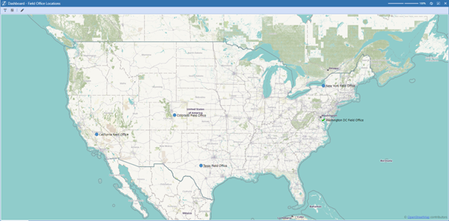
So you’ve bought the OneStream Advanced Reporting and Dashboards book - congratulations on being on your way to mastering these tools! The book is chocked full of examples and guidance on how to tailor your user experience, but here’s something extra – a tutorial on how to use Map Components in your application. We’ll walk through setting up a Dashboard with an interactive map to provide users with a visual display of locations, from collecting coordinates to displaying locations that are click-enabled to display relevant data.3.2KViews9likes3Comments