Unleashing the Power of OneStream Event Handlers: Enhancing User Experience and Efficiency
Unlocking the Potential of OneStream Event Handlers Hey there! Thanks for dropping by to read about OneStream Event Handlers. If you're looking to supercharge your application's capabilities, you've come to the right place. Let's dive into the world of Event Handlers and discover how they can take your OneStream experience to the next level.3.4KViews26likes0Comments
Closed Workflow
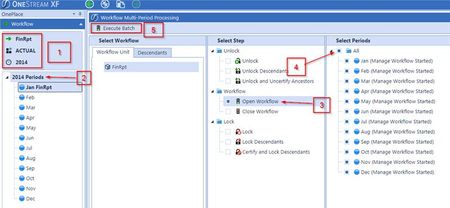
Thought I would share this from one of our Distinguished Architects: Although uncommon, but occasionally happens: Someone closed the workflows! This usually happens during or just after end user training. You’re probably wondering ‘how do people do this when it’s not something we show them?’. Your guess is as good as mine especially since a dialog box opens to ask them if they’re sure they want to close the workflows. So then the next questions are: How do I re-open them? Who closed them? Can I prevent it from happening in the future? Answers: Go to the top workflow for the scenario and year that was closed and you should see Open WF (step 3). To find out who closed the WF, you select the cube root WF in OnePlace for the specific scenario and year that was closed. Then in the right window, right click and click Audit (your menu might be slightly different from mine). In the pop up window, expand Manage Workflow and the green one below is who closed the workflow. The screenshot below shows who opened it back up. On the cube root workflows (on all of the dropdowns), change the three groups to Administrators. To avoid all of this, just do step 3 when you set up your workflows.1.3KViews5likes1Comment
File Explorer Incoming workflow folders missing in copied applications
This post is to provide information about File Explorer Incoming workflow folders. Based on what we've seen in our environments, when an application is copied, the new application does not contain the folder structure located at: \File Share\Applications\<Application Name>\Incoming\<Cube Root Name>_Cube\<Workflow Base Input Name>\<Workflow Import Name> We noticed these folders were missing in our last application copy when we were trying to copy files through SIC and drop them into the workflow import folders since our requirement was to drop them there for users to manually import when they choose (instead of automatically loading the files through batch import from batch harvest). To fix this issue we exported the Workflows and re-imported them back into the copied application. This triggered OneStream to create the cube root folders and workflow folders for the workflows that were imported. Hope this helps someone else who might be running into the same issue.1.7KViews4likes10Comments
Can complex transformation rules be written without using code?
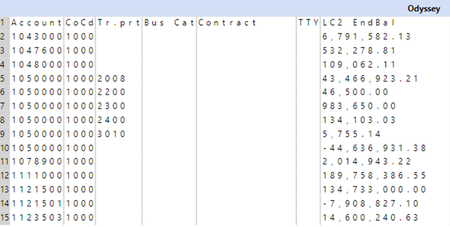
Mapping can be complex. Here’s an example and a solution to minimize the writing of business rules and use the out-of-the-box OneStream functionality to maintain them. The data source provided is simple and straightforward. There are only seven columns: account, company code (CoCd), trading partner (Tr.prt), business category (Bus Cat), contract, transaction type (TTY) and amount. The complexity comes into play when determining which of these fields or combinations of the fields make up the target dimension in OneStream. Below are the OneStream dimensions and the corresponding source field(s) that drive where the data should land in OneStream: Account: Account + CoCd + Bus Cat + TTY Flow: Account + TTY IC: Tr.prt UD1: Account UD2: Account + TTY UD3: Account + TTY + Bus Cat + Tr.prt UD4: Account + TTY + Bus Cat + Tr.prt UD5: Account + TTY So far, it still seems fairly straightforward – one could simply concatenate the source fields within the data source and map those combinations to a OneStream target. A multi-dimensional system helps minimize the need to map combinations as some customers must do in their GL systems. However, once the admin starts dealing with mapping combinations to one dimension, this can increase the maintenance of the maps and restrict the transformation rule types. Here’s an example for the above Flow dimension: Flow: Account + TTY Incoming dimensions: Account 160100 + TTY 120 Data source concatenates that: 160100120 We map it one-to-one to OS account: 10000 Next month we receive: Account 160110 + TTY 121 We concatenate: 160110121 Now admin needs to map this one to OS account: 10000 Admin doesn’t want to map all of these so they create a mask rule: 1601*12* --> 10000 The problem with this is now there can be any number of characters for the * so 161012 + 500 would also get mapped to 10000 even if it shouldn’t go there. The admin could set up a one-to-one to catch that one, but then again they’re mapping combinations. So instead of *, we use ? in a mask rule: 1601??12? This also works but uses a lot more resources and the transformation will take longer. Also, what happens if there’s a range involved? Accounts 160100 – 181249 with TTY 120 – 137 should be mapped to 10000. There are a lot of rules that need to be created to satisfy those conditions. So instead of concatenating the fields on the Data Source, the admin can enable the attributes on the cube, use those as additional fields in the data source and then utilize composite mapping on the dimensions where they can take advantage of wildcards, ranges and lists. Note: Composite rules also require a higher usage of resources so will take longer to process than one-to-one mappings – the tradeoff for monthly transformation rule maintenance. 1. On the cube, enable the attributes you want to use (up to 20). In this example, we only need to enable two. 2. Set up your data source as you normally would. However, for the dimensions where you would normally concatenate fields, use only one field – Account is a good selection because there’s generally an account in every row. 3. Add the attribute dimensions that you enabled in step 1 using the button in the menu. 4. Select the attributes and select Attribute as the Data Type. 5. Set up the attributes in the data source just as the other dimensions. In this example, Attribute 1 is Bus Cat and Attribute 2 is TTY. 6. Now the data source is set up to bring in the dimension fields as well as the attributes. 7. In the transformation rules, you’ll need to set up composite rules for each of the dimensions to handle the combinations of the various fields as indicated in the example above. Using account as an example: Account: Account + CoCd + Bus Cat + TTY The syntax for the attributes is A1# for Attribute 1, A2# for Attribute 2, etc. So, in this case, we want to create a composite rule that takes a combination of four fields: A#___:E#___:A1#___:A2#___ In composite rules, you can also use wildcards (* and ?) as well as lists (use ~ for the between) and ranges (use ; as separator). Here’s an example of a composite rule expression that uses all three of these: A#[1010000~1010099]:E#[1000]:A1#[00;01;04]:A2#[12*] In layman’s terms: combination of accounts 1010000-1010099 + CoCd 1000 + Bus Cat 00, 01 or 04 + TTY 12x You would set this up for each of the various dimensions. 8. Let’s take a look at UD2. In the data source, we selected Account (or column 1) as the source. Notice in the composite rule mapping, it doesn’t even look at the UD2 source, it looks at Account (although it could if the A# was U2#). 9. Once the file is loaded and transformed, a user can drill down and run a transformation rule audit where they can see what rules were applied to the incoming data for a data line This method of using out-of-the-box OneStream transformation rule functionality eases maintenance and minimizes writing business rules. Granted, the transformation rule syntax can take some time to learn but once you’ve learned it, it becomes second nature – especially to an administrator who will be thankful that they don’t have to spend their time writing and troubleshooting business rules.1.8KViews4likes0Comments
Customize answers to the certification questions
Hi all, Is it somehow possible to customize the answers to the certification questions? We would generally only want yes/no, but by default there is now a whole list of possible answers. We are looking for a way to limit this list. With kind regards, Tim1.8KViews3likes3CommentsHow to Update UI Workflow Status When Run Via Extensibility Rule
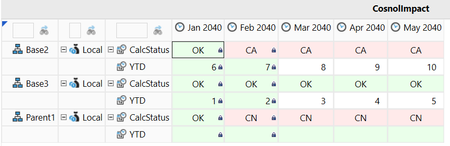
We have several workflows that involve many steps. The requirement is to have a button in a dashboard that runs the entire sequence or sequences. This is coded and works. The problem is when running workflows using a BR, the UI status doesn't update unless the refresh button is clicked. This action is not practical when operating in a dashboard because it closes the dashboard. How can I update the UI workflow status indications from the business rule? I need to go from this: To this: Without clicking this: Or leaving the dashboard.5.6KViews3likes8Comments